
Blog4 min read
Ntense beyond the cloud: Use your own browser, development tools, and GPU
Connect your own browser, development computer, or permitted cloud environment to Ntense with Ntense Tunnel, including install commands for macOS, Linux, and Windows.
By Ntense
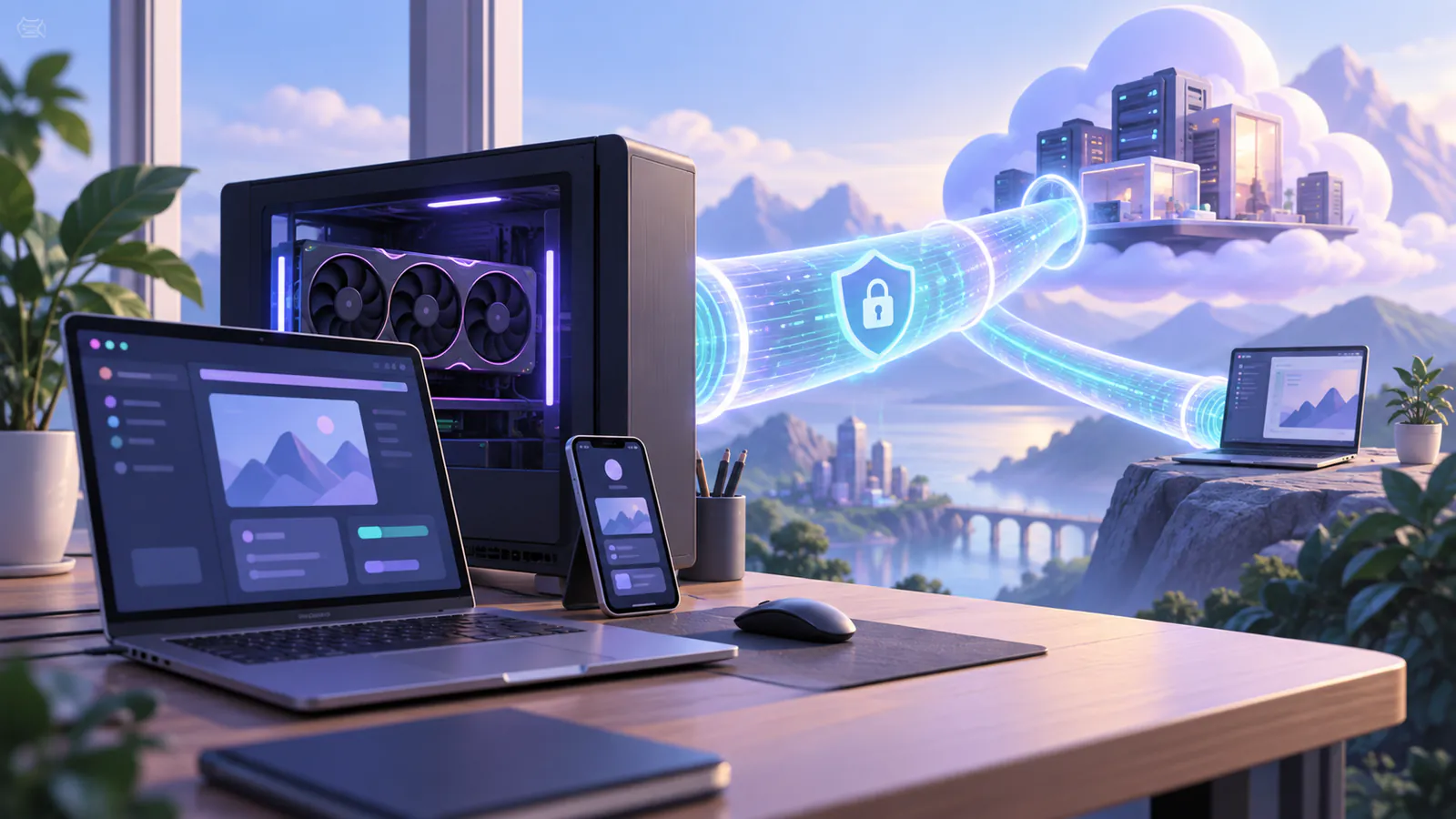
You do not have to move every part of your work into a Ntense Cloud Workspace. You can start an app in Ntense, call the Ntense AI API from your own code, or connect a computer you already use with Ntense Tunnel. The right choice depends on what you want Ntense to do: answer an API request, build an app for you, or help work with tools and files in another environment.
- Describe an app or website and try a working version without coding — Create an app from a prompt with Ntense
- Call Ntense models from your own app, script, or notebook — Use the Ntense AI API
- Let Ntense help develop or troubleshoot with tools on another machine — Connect that environment with Ntense Tunnel
What can Ntense Tunnel connect?
Your local browser. If a task needs to inspect a site in the Chrome browser you already use, connect the browser to your Workspace. Ntense can then work with that browser context while you can see what happens. Browser-only mode shares the browser; it does not grant command access to the rest of your computer. Chrome may ask you to allow the connection.
Your development computer. If your Mac has Xcode, your computer has Android development tools, or you have a local GPU setup, Ntense can help run and troubleshoot work where those tools are installed. You keep using your own machine and project files. The tools, devices, and permissions needed for a task must actually be available there; connecting a tunnel does not install them. In standard mode, commands require your local approval.
Another development environment. A compatible cloud VM, container, or notebook runtime can also be a target when it permits the connection and has outbound network access. This can help you use an environment that is already configured for a project, or a GPU resource you can access for learning. If a temporary runtime resets, reconnect it and check which files and tools are still present before continuing.
The tunnel connects the selected environment to your Workspace over an outbound connection. It can support command work and make a development website running there available for testing. You do not need to open an inbound SSH port just to make that connection. For a local browser, command work, and a notebook, choose only the access that matches your task.
Can I use Google Colab or Kaggle instead of setting up a GPU?
Yes, for API experiments. A Colab or Kaggle notebook with internet access can call the Ntense AI API from code, using your own Ntense API key and the API setup guide. Keep the key in the notebook provider's secret storage rather than in a shared notebook cell. This gives you a way to try an AI feature without installing a full development environment on your computer. Google Colab FAQ[1], Kaggle Notebooks documentation[2].
A development tunnel is a separate choice. When using remote-control shells with any third-party cloud environment or notebook, follow that service provider's terms and conditions. Check the runtime's available tools before connecting Ntense Tunnel. Free resources can reduce setup and spending, but availability and permitted uses vary. Google Colab FAQ[1], Kaggle Notebooks documentation[2].
How do I start safely?
In your Ntense Workspace, open Tunnel & SSH → Ntense Tunnel and generate a tunnel token. Install and start the tunnel on the computer you want to connect.
macOS or Linux (shell):
curl -fsSL https://ntense.ai/ntense-tunnel-install.sh | bash
bash ~/.local/share/ntense-tunnel/ntense-tunnel.sh --host '<WORKSPACE_HOST>' --token '<TUNNEL_TOKEN>'
Windows (PowerShell):
Invoke-WebRequest https://ntense.ai/ntense-tunnel-install.ps1 -OutFile ntense-tunnel-install.ps1
& .\ntense-tunnel-install.ps1
& "$env:LOCALAPPDATA\nTense\Tunnel\ntense-tunnel.ps1" --host '<WORKSPACE_HOST>' --token '<TUNNEL_TOKEN>'
Copy the exact start command from your Workspace's Tunnel Setup page to get your own host and token in place of the example values. The page also provides a browser-only command and notebook instructions. Start with the narrowest option that serves the task: browser-only for a browser test, or command access when Ntense needs to build or debug on that machine. Keep the token private, review command requests on your computer, and stop or revoke the connection when you are done.
The useful learning loop stays the same in every environment: choose a real outcome, let AI help build it, inspect what happened, test the result, and learn the next concept the work exposes. Start with an app from a prompt if you want to feel a working result first. Move to the API or a connected development environment when you are ready to build more yourself.
Sources and further reading
Sources
- Google Colab FAQ — Google Colab Accessed Wed Sep 23 2026 00:00:00 GMT+0000 (Coordinated Universal Time). Explains Colab notebook operation, runtime availability, and the need to follow Colab usage rules when working in its managed environments.
- Kaggle Notebooks Documentation — Kaggle Accessed Wed Sep 23 2026 00:00:00 GMT+0000 (Coordinated Universal Time). Documents Kaggle Notebooks as a hosted notebook environment for running code with available compute resources.